Edit Product
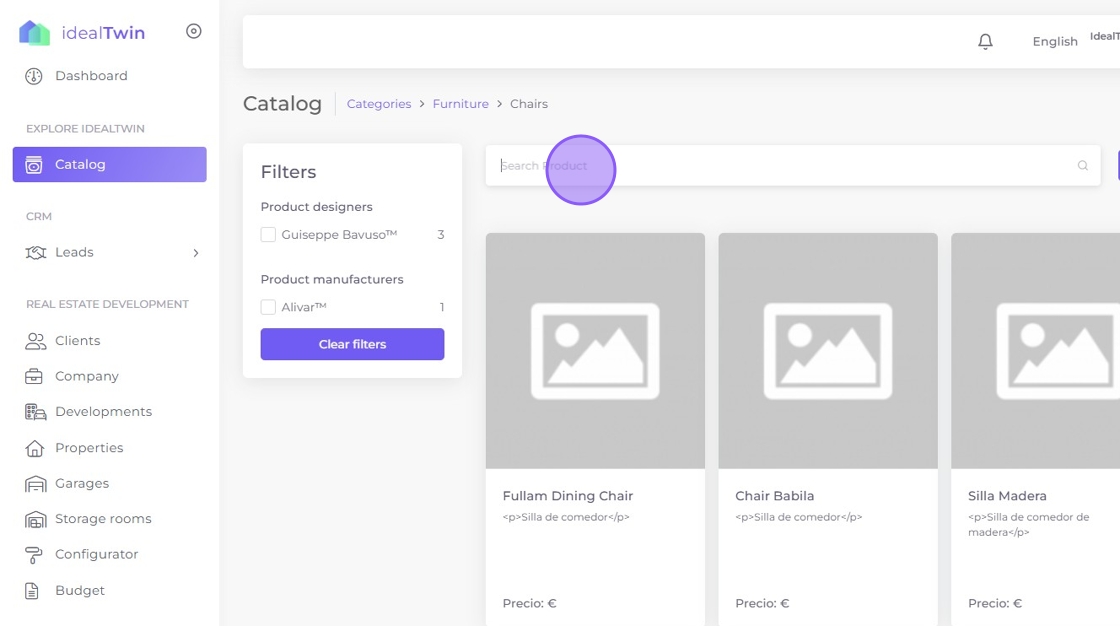
To edit a product on which we have permissions or for which we are the owner, we must first access its detailed view by navigating through the Catalog. In this case, we are going to edit the product we have created in the previous step of Add a new product. To do so, go to Catalog and search for the product in the corresponding category.
Once in the desired category, you can enter the specific name of the product you wish to edit, if you know it for sure. In addition, there are other filters available, such as designer, supplier or other specific features, which will allow you to refine your search and quickly find the product within the category.
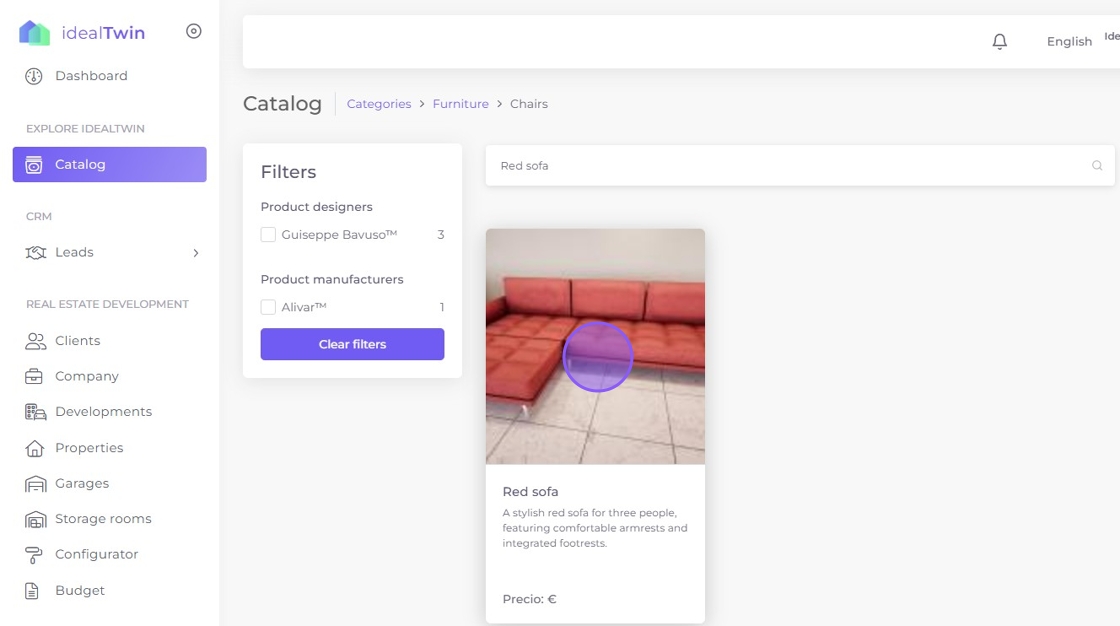
Once you have located the product, click on it to access its detailed view.

When accessing the product view, as long as we are the owners or have the necessary permissions to manage it, three vertical dots will appear on the right. These dots will allow us to perform the following actions: edit, create a variant o delete the product. In this case, we will focus on the process of edit the product.
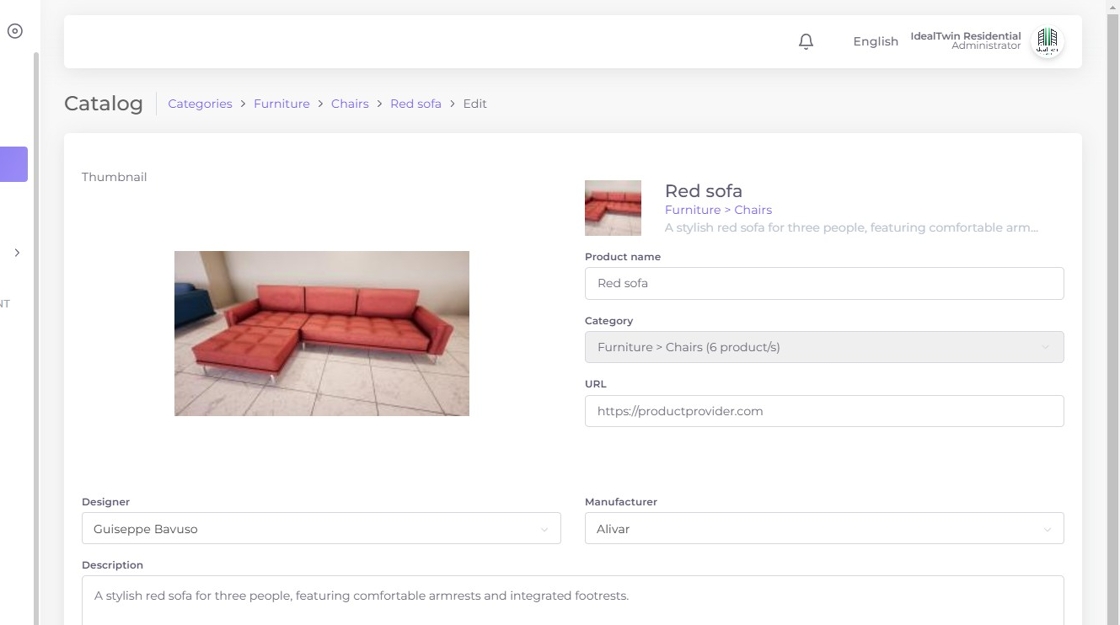
Edit view
Once in the edit view, you will be able to modify all the basic product information you entered at the time of creation and more options. This includes details such as name, description, price, images, and other relevant attributes.
Product details
In this section, you can also add additional information, such as the Reference number, Price o Collection. In addition, if you click on the Add detailsa modal window will open where you will be able to select and add more specific attributes, such as length, weight, coloramong others, which you can choose according to the available options.
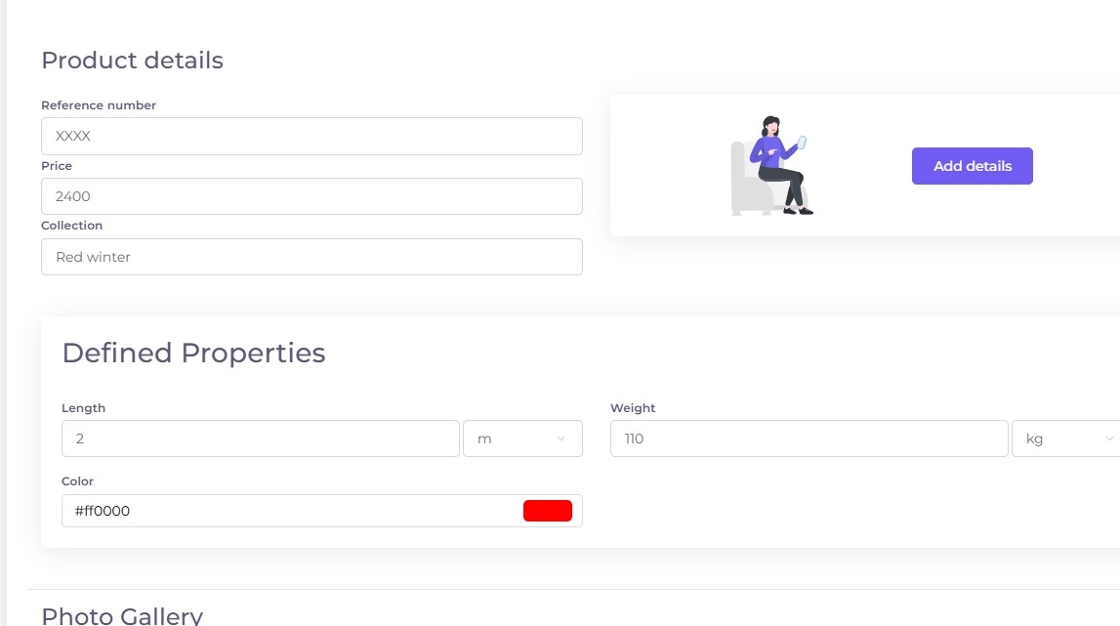
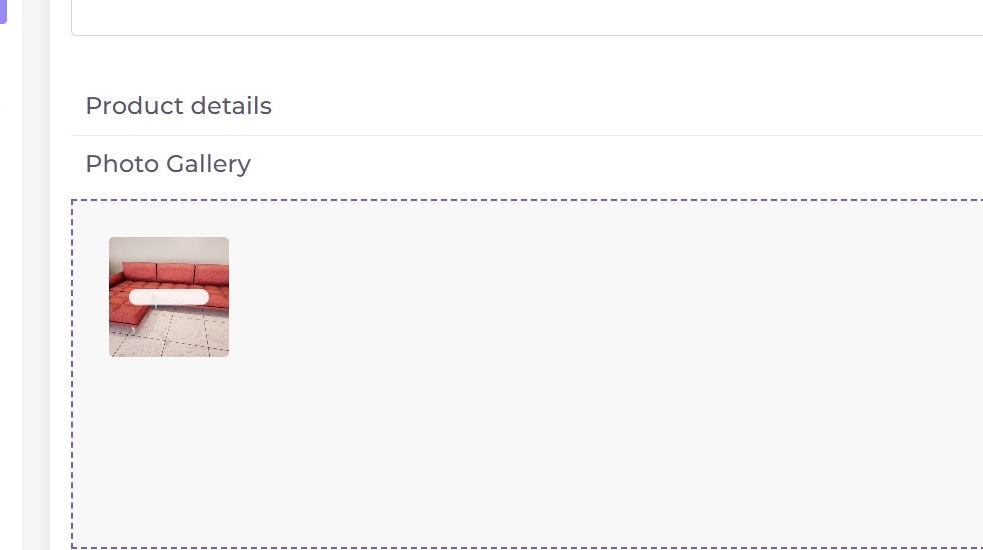
Photo Gallery
In this section you can add more images of the product so that they appear in a carousel.
Product files
In this section, as in photo gallery you can add files related to the product.
Save Product
Finally select save and you will be redirected to the newly edited product view.