Add billing address
IdealTwin allows you to manage and configure billing addresses for each company. Here's how to add or modify your company's billing information:
Steps to add a new billing address
Log in:
Log in to your IdealTwin account.
Select the company:
From the drop-down menu in the upper right corner, select the company to which you want to add the billing address.
Access the billing configuration:
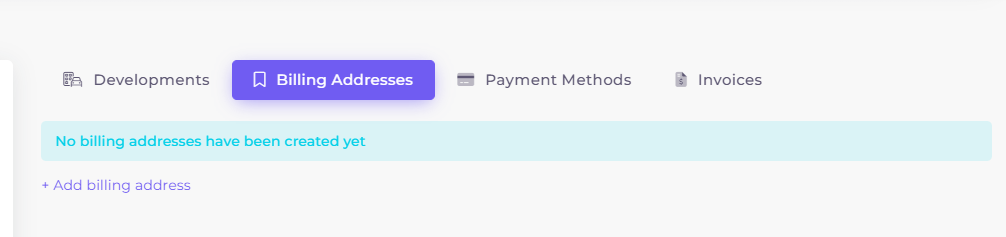
Navigate to Company > Billing Addresses.
Add an address:
Click on the button "+ Add billing address" or select the edit icon (✏️) if you want to modify an existing address.
Fill in the information:
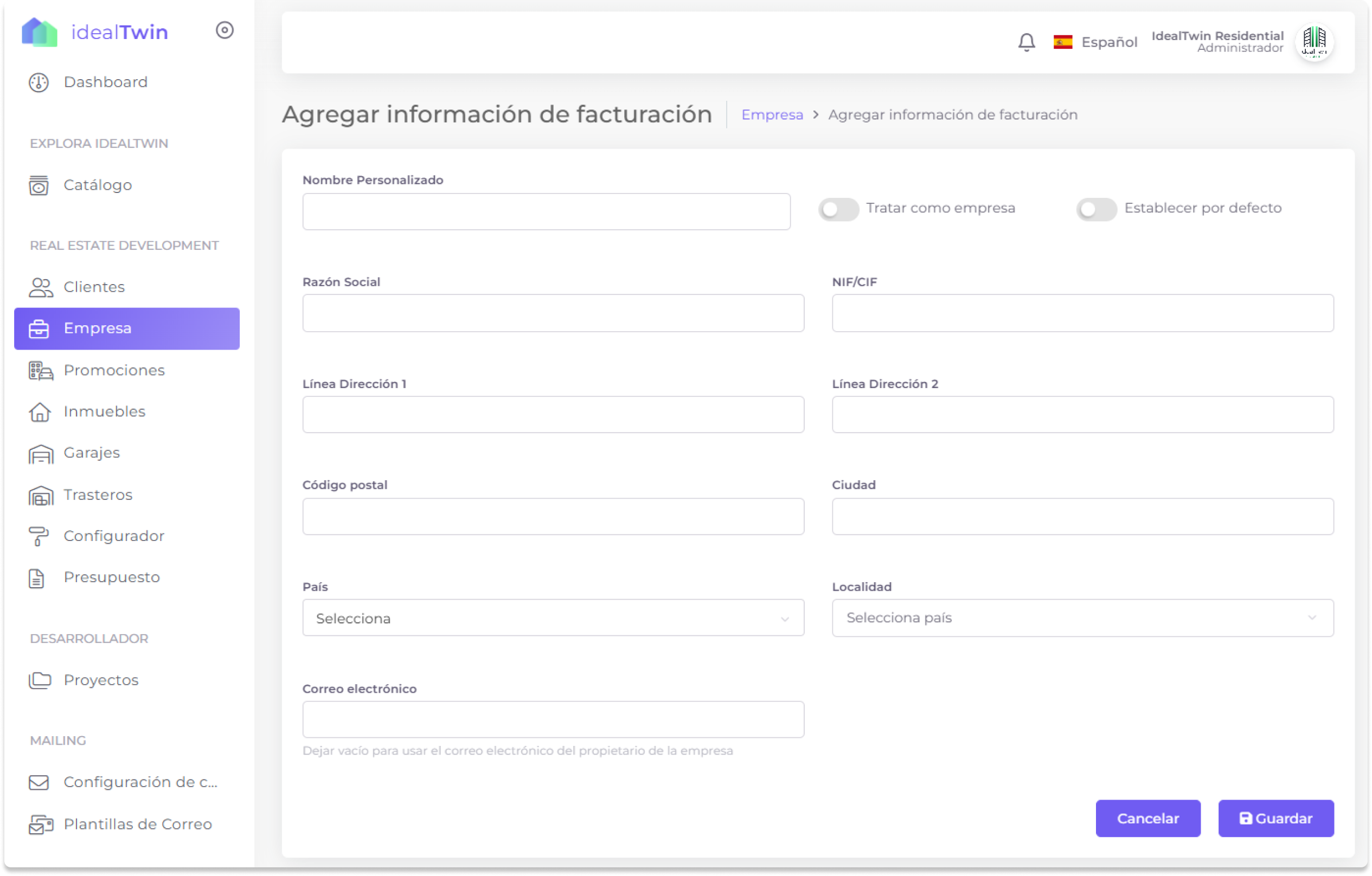
Complete the required fields:
Name of address (e.g., "Main Office").
Company name.
NIF or tax identification number.
Complete addressincluding street, city, zip code and country.
Save the data:
Once you have filled in the information, click on the button "Save" to register the changes.
Steps to edit an existing billing address
Access billing addresses:
Follow the steps above to get to the Billing Addresses.
Select the address to edit:
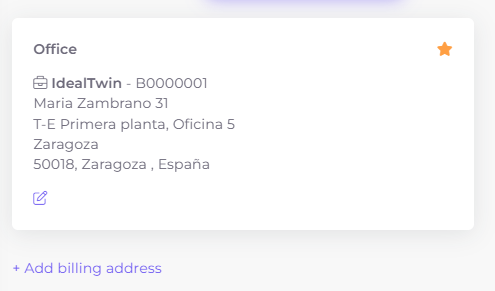
Locate the address in the list and click on the edit icon (✏️).
Update the information:
Modify the required fields with the updated data.
Save changes:
Click on "Save" to apply the changes.
Important Notes
Multiple management: You can add multiple billing addresses to assign them to different promotions or projects.
Continuous updating: Be sure to keep this information up to date to avoid errors on tax documents such as invoices and estimates.
Favorites: You can mark an address as a favorite to set it as the default for document generation.